Flight Ticket Generator AI
Use Preplity to organize travel details and generate a flight itinerary preview. Review the route, passenger details, and dates before downloading your planning document.
Preplity generates flight itinerary documents for personal planning and practice. Airlines and travel sellers issue reservations and tickets.
Give AI a concrete job
“Find a better flight” is a fuzzy request. “Help me compare two routes that arrive before noon local time” gives you something you can check. Start with the arrival deadline, the airports you can reach, and the layover you’re comfortable with. Use Preplity to build and review each route as a document.
After generating a preview, check where arrival falls on the calendar. Overnight travel can shift the hotel start date or make an early appointment unrealistic. Verify the schedule with the carrier when making a decision. Save the route you want to discuss, then come back to it from the same browser.

Try an arrival-first comparison
Write down the local time you need to be at a meeting. Use AI to help list which variables can move, like the departure airport or day of travel. Then use two Preplity itineraries to compare a cheaper overnight route with a same-day arrival. Reserve room for getting from baggage claim to the meeting.
If a route summary says you land Monday, check the exact local time against your calendar. Look up the travel date, transport schedule, and actual flight with the operator. When one option can’t work on the ground, revise it or drop it. That makes the next round of research quicker.
Put your route on one page
Enter your airports and travel dates, then open the preview to see how the legs fit together.
Start with the day you need to arrive
Pick a latest arrival time before you settle on a departure. If you’re traveling to a wedding, think about the time you need to be at the venue. If it’s a work trip, work backward from the first appointment. Add enough room for baggage, transport, and whatever you need to do between landing and getting there.
Keep track of the calendar date in the destination. A late departure might land the following day, and a connecting trip can span more than one local time zone. Record the date as well as the time whenever you compare routes. The date you see in the itinerary should answer the same question as the date you choose for lodging.
Try keeping one preferred route and one backup route in your browser. Make the backup meaningfully different. A later departure can be useful if your plans are flexible, but a flight into a different airport might be less useful if you’ve already arranged a ride.
Check the airport, not just the city
A city name can cover more than one airport. Compare airport codes and ground transportation before deciding that two routes are equivalent. If you’ll arrive late, make sure the transport you plan to use will still be running. If someone will pick you up, share the airport and the flight plan so they can decide whether the drive works for them.
Connection details can change the shape of the whole trip. A short connection might be fine on one booking, whereas a self-transfer can involve collecting bags, clearing checks, and starting over with a different carrier. If the plan includes an airport change, account for the time and cost between terminals or airports.
In Preplity, look at the itinerary once with the details panel closed or out of the way if your screen allows it. Follow the route from the first departure to the final arrival. A missing airport or impossible sequence stands out sooner when you read it as a trip instead of as a series of inputs.
Get another set of eyes on the plan
If you’re coordinating with other people, give them a clear question. Ask the person meeting you to check the airport and local arrival date. Ask the other traveler to check whether the departure gives them enough time to get there. Ask the person coordinating lodging whether the dates fit the stay.
Tell everyone the document is a plan if you haven’t booked yet. A message such as “Could either of these routes work for you?” gives the reader a job and avoids creating the impression that seats are already confirmed. When there’s a final booking, point people to the actual confirmation and tell them which plan you went with.
When a detail changes, update the plan and date the version you’re sharing. Keep the other option if the tradeoff is still open. It takes less time to compare two clearly named documents than to reconstruct the decision from several different screenshots.
Use the editor to work through the details
Choose an available layout and add the route, dates, and other fields you want to compare. Click Generate and give the preview a read through before doing anything else. If the airport names look similar, double-check the codes. For a date change, follow the new schedule all the way through to the arrival day and the start of your lodging.
My Documents keeps your work in the same browser. If you come back to a plan later, review the saved version before choosing Regenerate. That is useful when the old itinerary records an alternative you still want to consider. Keep travel evidence you received from a seller filed separately.
Decide if you need a downloadable copy. A preview works for checking a date or talking through options in person. A download helps when the plan needs to travel with you or be reviewed by someone else. Look over the full preview before confirming payment.
Check where and when you land
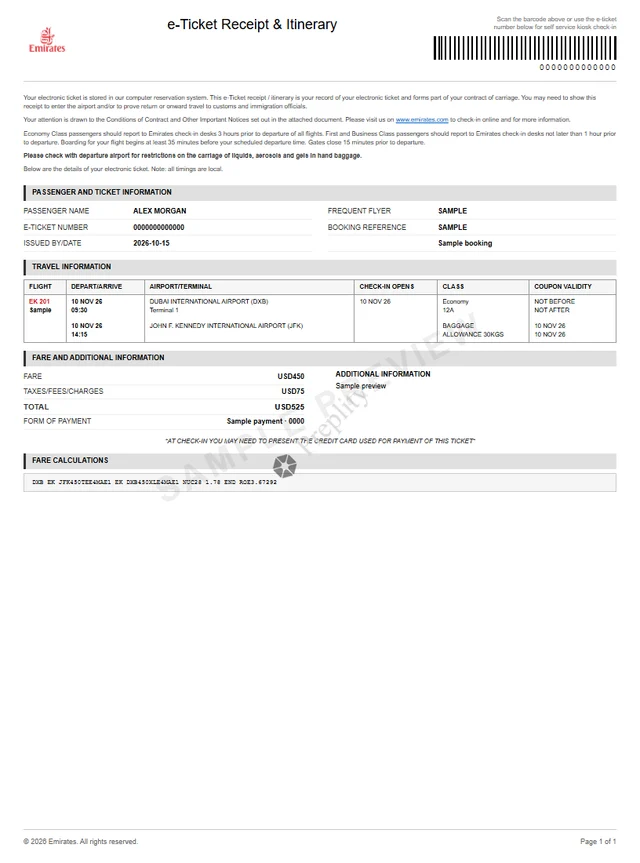
Review your airports and local arrival date before sharing the plan.
Move from planning to booking when you’re ready
When it’s time to travel, find the route with the airline or authorized seller. Compare the dates, names, airport codes, fare conditions, and connection details you’ve chosen. Check what the seller will do if your plans change. If an option requires several separate purchases, understand which seller is responsible for each leg.
Keep evidence from checkout where you can find it. The original receipt, reservation confirmation, and latest itinerary may arrive as separate messages. After a change, use the latest record from the seller and review any separate arrangements such as pickup, baggage transfer, or lodging.
If someone asks for evidence, ask what form they accept and follow their instructions. A personal planning document serves a different job from a carrier-issued ticket or a reservation you can confirm with the seller.

Keep the details usable when plans move
A travel plan is most useful when you can change it without losing track of what you were considering. Give your first version a clear goal, such as arriving before dinner. If you revise the route later, keep the airport and destination date visible near the top of your notes. That makes it easier to see whether the new version still meets the goal.
Put related decisions on their own list. Lodging, ground transport, and who is meeting you may all depend on the route. A later arrival might save money on airfare but cost more on transport. An earlier departure might require traveling to the airport the previous evening. Work through any change that matters before choosing a version.
If other people are involved, tell them which details are settled and which still need a decision. Ask each person to confirm the detail that affects them. When the actual reservation is made, review those points again against the seller’s confirmation. Keep the confirmed copy available on the device you’ll use to travel.
After an itinerary update, look at the whole plan once more. Check local arrival date, airport, and anyone waiting for you. Finish with one sentence that explains the chosen plan. If you can’t say where or when you’ll arrive without switching screens, simplify the notes and try again.
Put it into practice
Treat any suggested route as a starting point. Confirm flight availability, arrival dates, and connection details with the operator.
Preplity generates flight itinerary documents for personal planning and practice. Airlines and travel sellers issue reservations and tickets.
Common questions
Which date should I check first?
Start with the arrival date in the local time at the destination. Compare it with the day you need to be there. Once that lines up, check the departure date and ground transport. If crossing midnight or changing time zones makes the plan confusing, read through the route leg by leg with a calendar next to it.
Can the itinerary help me choose between two flights?
Yes. Create a planning document for each option and use the same question to compare them. For example, decide which route could get you to a meeting by noon without relying on a tight transfer. Keep your comparison focused on details you can confirm, and check actual schedules with the airline before you buy.
What if my dates change?
Open My Documents in the browser where you made the itinerary. Review the saved plan, edit the dates that changed, and check the new arrival against other arrangements. If you already purchased a ticket, request changes through the airline or seller and rely on its updated confirmation for the trip.
When is it worth keeping a PDF?
Download if a planning copy will help you and your group work from the same details offline or decide which route to choose. Review the preview first and give the file a name that explains its purpose. After booking, keep the airline or seller’s confirmation in a separate folder you can reach when you’re traveling.
What information should I share while the trip is still tentative?
Share only what the other person needs to help with the decision. Someone arranging pickup might just need the airport, the expected arrival, and the day you’re considering. Tell them it’s a proposed route. Once the trip is booked, send updated details if they need to coordinate around the confirmed flight.
Keep exploring

Create your flight document
Open your document, make it yours, and download instantly.